
Priiize Dashboard: How to get to Email Setup:
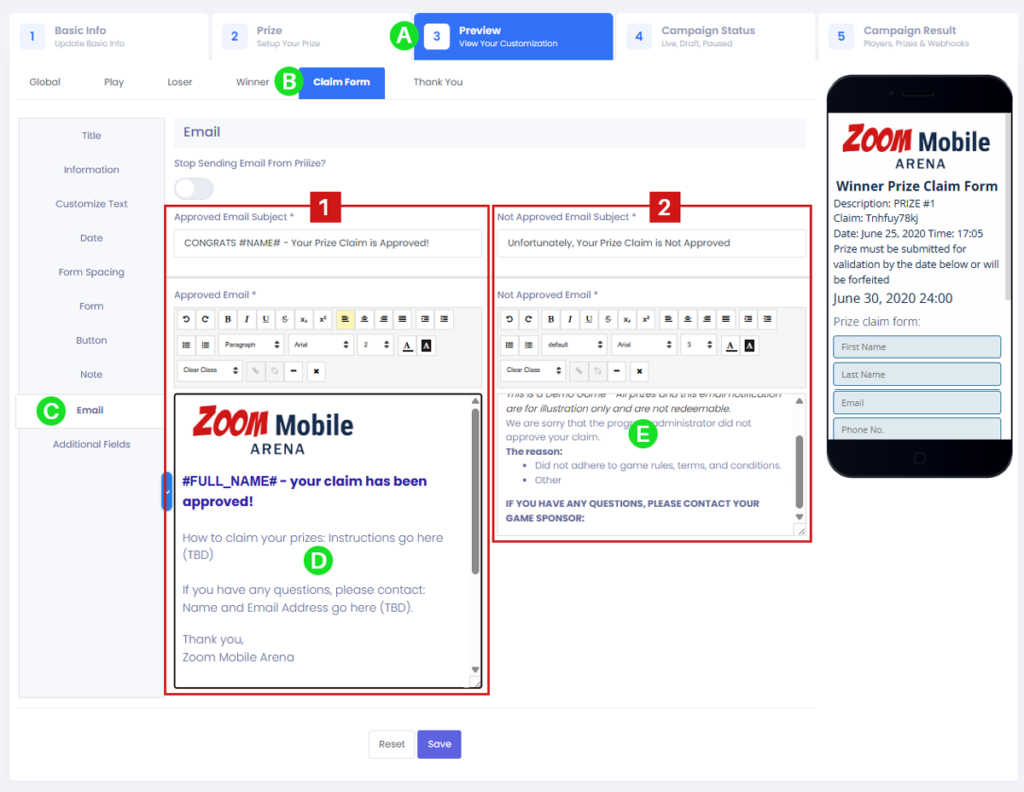
Click (A) PREVIEW TAB > (B) CLAIM FORM TAB > (C) Email.
- (BOX 1) – Edit email text in the APPROVED PRIZE CLAIM EMAILS field in BOX 1. Note that APPROVED PRIZE CLAIM EMAILS can be activated for prizes set to AUTO APPROVE and MANUAL APPROVE.
- (BOX 2) – Edit email text in the NOT APPROVED EMAILS field in BOX 2.
Note that the NOT APROVED EMAILS can only be activated when a prize is set to MANUAL APPROVE.
Note: Loser Email Notifiers are available on games using the Scratch & Win + Claim and Scratch & Win + Opt-In + Claim engines.
How to place a logo image in the Priiize Email Notifier.
Video Instructions: How to place a logo image in the Priiize Email Notifier.
1min 26s video.

Prize Claim Form
The Prize Claim Form is available on two templates, the Scratch & Win + [Claim], and the Scratch & Win + [Opt-In] + [Claim] Templates.
PREVIEW > CLAIM FORM > TITLE TAB – Customize your claim form here.
(A) “Claim Form” Tab – click it.
(B) Customize Settings – Set the text, notes, colors and button for your Winners Prize Claim Form, Note, Email Notifier, and more.
CLICK SAVE TO SAVE YOUR EDITS

How to Bypass the Prize Claim Form and use your own.
If you prefer using your Email Servers, use the SMTP form on TAB 5 CAMPAIGN RESULT and click the toggle button named “Stop Sending Email From Priiize.”
