
What this page covers
Follow the below instructions to add the “Share to Facebook” feature to your game:
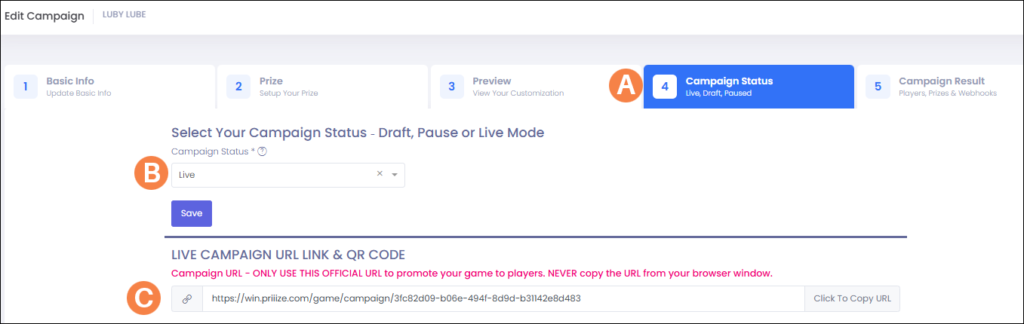
- Locate your game link on the (A) Campaign Status page. Your campaign must be set to (B) “Live” or “Live With Dates”
- Copy and paste the (C) Live Game URL link onto a Notepad or Word document.
- Before the link to your game, insert https://www.facebook.com/sharer.php?u=
- You should now have a URL that looks something like this (use your game’s live game URL in place of the example below)>
https://www.facebook.com/sharer.php?u=https://win.priiize.com/game/campaign/21efaf-7d69-4de6-9572-62730dd99328
- Now, test it. Copy the new URL and paste it into a new web browser
- You should see that the link generates a new Facebook post and gives you the option to post to your feed or to a story. You are just testing it, so make sure your privacy is set to “Only Me”. You should see the padlock icon that indicates you will be the only one able to view the post.
- If all looks good, copy the URL that is in your web browser. (You will see that percentage symbols and numbers have been added. This is normal.)
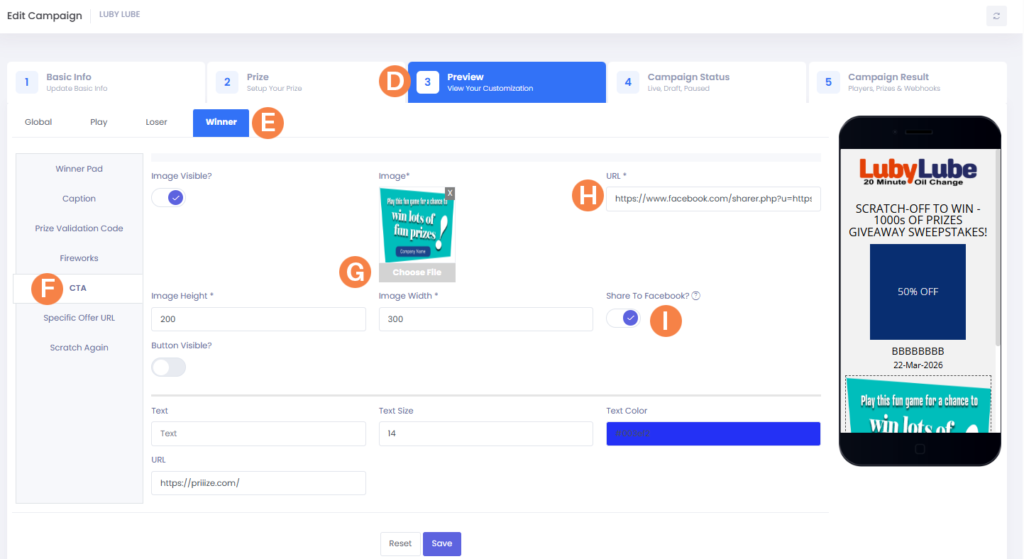
- Click the (D) Preview Tab, (E) CTA tab, then the (E) Winner Tab, and then the (F) CTA Tab. Paste that (H) URL link from your web browser as the link to the (G) uploaded image or a button in your game. Activate the (I) Share To Facebook toggle. Click Save.
- You can add this feature to the CTA section on the Loser page (the Tab to the left of the (E) Winner Tab) under CTA section on the Thank You page if you are using the Scratch & Win + Claim template.
Create a banner image that reinforces your promotion for players to click and share on their Facebook account.

TAB 4 – CAMPAIGN STATUS
TAB 3 – PREVIEW
Follow the below instructions to add the “Share to Facebook” feature to your game:
- Locate your game link on the (A) Campaign Status page. Your campaign must be set to (B) “Live” or “Live With Dates”
- Copy and paste the (C) Live Game URL link onto a Notepad or Word document.
- Before the link to your game, insert https://www.facebook.com/sharer.php?u=
- You should now have a URL that looks something like this (use your game’s live game URL in place of the example below)>
https://www.facebook.com/sharer.php?u=https://win.priiize.com/game/campaign/21efaf-7d69-4de6-9572-62730dd99328
- Now, test it. Copy the new URL and paste it into a new web browser
- You should see that the link generates a new Facebook post and gives you the option to post to your feed or to a story. You are just testing it, so make sure your privacy is set to “Only Me”. You should see the padlock icon that indicates you will be the only one able to view the post.
- If all looks good, copy the URL that is in your web browser. (You will see that percentage symbols and numbers have been added. This is normal.)
- Click the (D) Preview Tab, (E) CTA tab, then the (E) Winner Tab, and then the (F) CTA Tab. Paste that (H) URL link from your web browser as the link to the (G) uploaded image or a button in your game. Activate the (I) Share To Facebook toggle. Click Save.
- You can add this feature to the CTA section on the Loser page (the Tab to the left of the (E) Winner Tab) under CTA section on the Thank You page if you are using the Scratch & Win + Claim template.
Create a banner image that reinforces your promotion for players to click and share on their Facebook account.
TAB 4 – CAMPAIGN STATUS
TAB 3 – PREVIEW